Road to Jukai Controls & Night Driving Focus
Keep the cabin steady when the forest starts staring back.
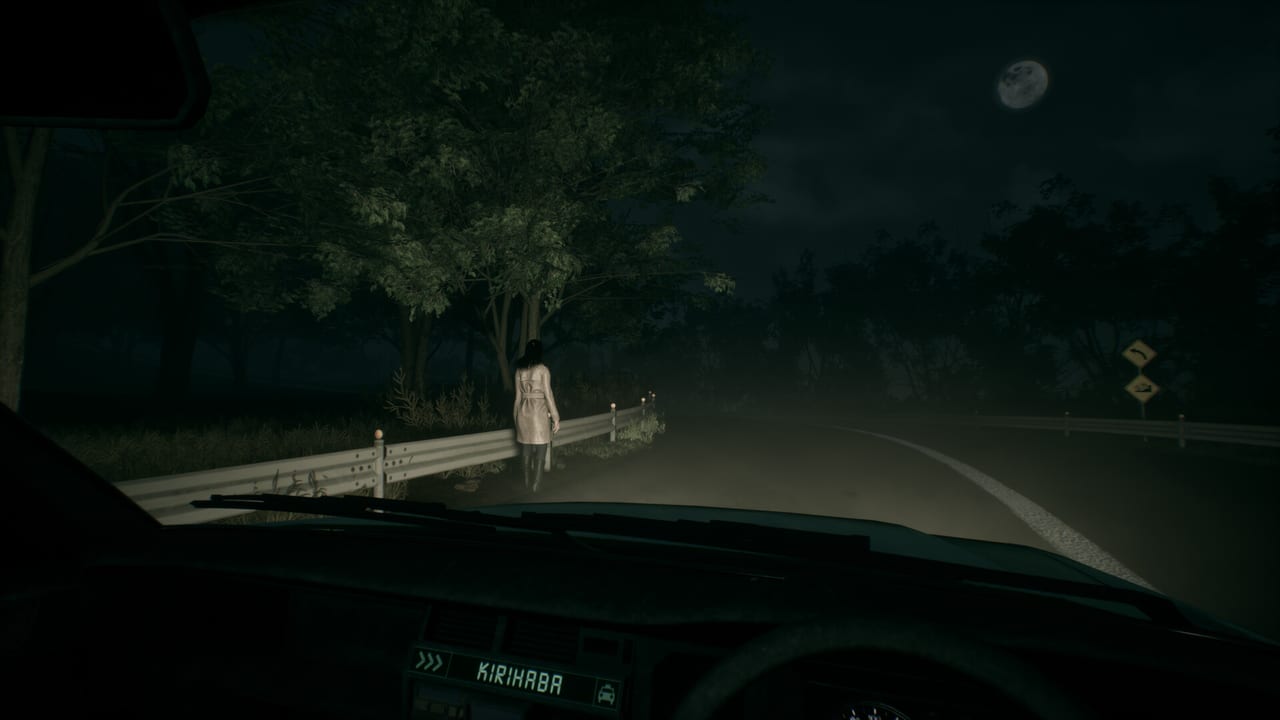
Road to Jukai is a first-person psychological horror game where most of your attention sits between the steering wheel, the road, and the mirror. Public Steam information lists partial controller support, which means keyboard and mouse remain the safe default until you verify your own build. This page explains how to think about driving controls, camera look, interaction prompts, and focus habits that matter more in fog than in a bright daytime racer. Exact key bindings can change between playtest and the 2027 release—always confirm them in the in-game options menu of the build you are running.
Mental model: driver first, tourist second
You are on a night shift. The fantasy is occupational, not arcade. Expect movement and looking to feel closer to a grounded first-person game than to a simulation with a full telemetry stack. Your priorities in order are: stay on the road, keep visual information readable, hear the passenger, then investigate optional details when it is safe. If a control scheme forces you to fight the camera while a fare speaks, lower look sensitivity before you blame the writing.
Keyboard and mouse baseline
Most players should start on keyboard and mouse:
- Movement / steering — use the standard WASD-style cluster or the bindings shown in your options screen for vehicle control.
- Look / aim the view — mouse look covers mirrors, dashboard glances, and roadside silhouettes.
- Interact / confirm — expect a context prompt when entering the vehicle, accepting UI choices, or responding to world interactions.
- Pause / options — map pause to a key you can hit without looking down; horror audio spikes are bad moments to hunt for Esc.
- Headlights or vehicle toggles — if your build exposes light controls, practice them in a quiet stretch before a tense fare.
Because this wiki covers a pre-release game, we do not invent a fake key table that might contradict the shipping options menu. After you launch a playtest or review build, photograph or note your bindings and keep them consistent across sessions so muscle memory survives patch changes.
Controller notes (partial support)
Steam lists partial controller support. That usually means some menus, prompts, or precision tasks still prefer a mouse, or that glyphs and dead zones need manual tuning. If you prefer a gamepad:
- Connect the pad before launching Steam Big Picture or the game.
- Check whether Road to Jukai shows a controller configuration in Steam Input.
- Raise dead zones slightly if foggy roads cause tiny steering jitter.
- Lower look stick sensitivity until tree lines stay stable during slow turns.
- Confirm you can pause, skip (if available), and confirm dialogue without reaching for a keyboard mid-scene.
If a prompt only responds to a mouse click, do not assume the game is broken—partial support often leaves cursor-driven UI in place. Keep a keyboard nearby during playtest nights, and report sticky prompts with the feedback habits described in Join the Playtest.
Focus tips for night forest driving
Fog, rain sheen, and narrow roads punish over-steering. Try these habits:
- Ease into turns — trailer footage emphasizes lonely mountain passes and village streets; abrupt stick flicks cause more panic than the passenger does.
- Use short look checks — glance to the sidewalk or mirror, then return to the vanishing point. Staring into the trees while rolling forward is how you miss a bend.
- Stable frame pacing — hitching cameras feel like supernatural jolts. Cap FPS if your display and GPU disagree, and read System Requirements for min/rec hardware.
- Readable darkness — increase gamma carefully. Crushing blacks can hide roadside hazards; blasting brightness can flatten the intended dread.
- Audio as a control surface — headphones help you catch whispered requests and exterior cues without staring at subtitles every second.
- Take micro-breaks — six nights of tension land harder if your hands are already cramped from white-knuckle steering.
Accessibility and comfort settings to look for
Depending on the build, hunt the options menu for subtitles, language selection (Steam lists English, Spanish, Catalan, French, German, Japanese, Simplified Chinese, Russian, and Brazilian Portuguese among supported languages), vibration toggles, and any camera shake or motion options. This fan wiki’s locales are a smaller set, but your game client may offer more. If a comfort option is missing in playtest, include it as a feedback request rather than a bug.
Early demo and playtest handling notes
Public BitSummit 2026 hands-on impressions—gathered while the game was still titled Silent Road—described stressful night driving that could bounce off walls, plus slow cabin head-look that made passenger glances expensive. Those notes are early-build texture, not a promise of final 2027 handling. Playtest and demo builds may still be tuning vehicle collisions, steering response, and look speed. If your taxi ricochets more than you expect, ease inputs, recheck sensitivity, and file a reproducible report rather than assuming the shipping drive will feel identical. For a spoiler-light summary of that preview, read BitSummit Hands-On. When a fare asks you to step outside, continue with Roadside Stops so on-foot look habits match what you practiced in the cabin.
Practice route before story obsession
On your first launch, spend a few minutes only on vehicle feel: straight road, gentle curve, stop, resume. Then introduce passenger tension using the loop described in How to Play. Pair that with Getting Started if you still need premise context, and Six Nights when you want to know how the campaign frames multiple evenings. Controls mastery is not about speedrunning fares; it is about staying composed when a request from the back seat makes you want to look everywhere except the lane.
Troubleshooting common input pain
- Mouse look feels sticky — close overlays, verify polling rate, disable acceleration in raw-input friendly setups.
- Controller steering snaps — lower sensitivity, raise dead zone, disable competing Steam Input templates.
- Cannot click a prompt — try mouse; report partial-support gaps with UI screenshots.
- Motion discomfort — reduce look smoothing extremes, sit farther from ultrawide screens, shorten sessions.
When inputs feel invisible, the forest gets louder—in a good way. Set your bindings, verify partial controller behavior early, and return to the Guides Hub for the next how-to once the cabin stops fighting you.
Frequently Asked Questions
Quick answers for night-shift drivers preparing for Jukai.
Does Road to Jukai fully support controllers?
Steam lists partial controller support. Verify your pad in the current build and keep a keyboard ready for stubborn UI prompts.
Should I play with keyboard and mouse?
Yes as the default. First-person look and menu precision are usually cleaner on mouse until full controller polish ships.
Why does fog make driving harder?
Limited sight distance punishes over-steering and constant mirror staring. Ease turns and return your view to the road quickly.
Will keybinds match this page exactly?
Bindings can change between playtest and release. Always trust the in-game options screen for your build.
What should I read after controls?
Continue with How to Play for the core loop, or Join the Playtest if you still need Steam access.